Screencast: using Timeline.Js to make interactive timelines for stories
Elements of multimedia and interactivity can help readers to better understand issues, and this free, open-source tool lets journalists create media-rich timelines to explore
This article was migrated from an old version of our website in 2025. As a result, it might have some low-quality images or non-functioning links - if there's any issues you'd like to see fixed, get in touch with us at info@journalism.co.uk.
Timeline.Js is an open source tool built by a team at Northwestern University's Knight Lab in the US, and has been used by a number of news organisations to show how stories or events have unfolded in an interactive manner.
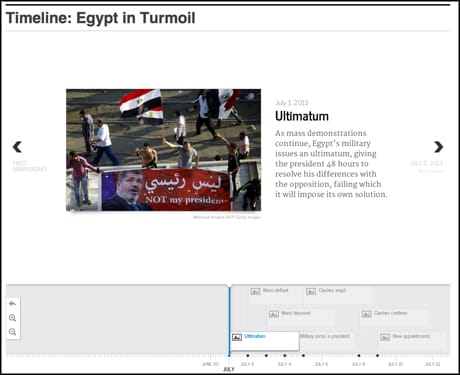
It is essentially a way to create an embeddable timeline with cards of text or multimedia to explain key moments in the story. As an example, Al-Jazeera America used it to good effect in explaining the events in Egypt in the summer of 2013.

Screenshot from Al-Jazeera America The above screencast goes into detail on how to use the tool, but if here's a quick run down of the steps if you don't have time for the video.
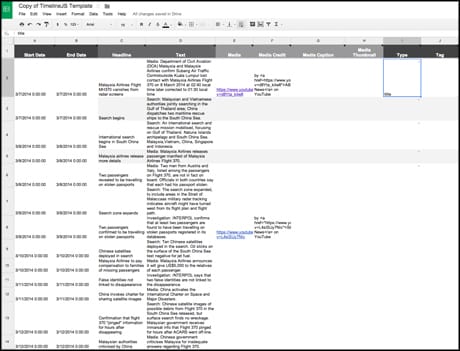
The back end of each timeline is created in a Google spreadsheet, so go to the Timeline.Js website and scroll down to the "create your spreadsheet". The tool inventors have created a handy spreadsheet template so open that up to see what you need.
The different columns are fairly self explanatory but let's go into them in a little detail.

. Once you have added and organised all your text, headlines and credited media, go to 'File' in the menu bar of the spreadsheet and click "Publish to the web". Then click the "start publishing" button and Google will generate a URL.
Copy and paste the URL and then add it to the generator box on the Timeline.js site. There are a number of customisation options if you want to go into greater detail, but the basic timeline option still looks great.
Scroll down and you can generate a preview to see how your timeline looks, before copying the embed code to embed it into your article.