

Online Journalism News
How to: tame your RSS sources using Feed Rinse
Earlier this month, we looked at using Yahoo! Pipes to create a pre-filtered aggregation of RSS feeds. The exercise was intended primarily to help demystify Pipes' offputting (but nonetheless cool) graphical interface, rather than presenting Pipes as the paradigm solution for feed filtration and aggregation.
But there are good reasons why filtering and aggregating your feeds might be your main goal, rather than learning to use Pipes. You might, for example, as part of your news or feature research, be monitoring a number of blogs via their RSS feeds. Bloggers often post on a wide range of subjects, placing their posts under particular categories or tags, and you might only be interested in posts that appear in certain categories. The same applies to a lot of news sites. By filtering each feed and combining them, you can end up with a single feed with just the type of posts or stories you need.
Pipes is still in beta and a little unstable. Also, if you want to manage a large number of feeds, your Pipe will soon begin to look like a bowl of spaghetti. Fortunately, on the web, there is always more than one way to skin a cat.
Another web-based (and free) solution is Feed Rinse. Feed Rinse has a far simpler interface than Pipes and you can achieve the same goal as our original Pipe exercise in half the time.
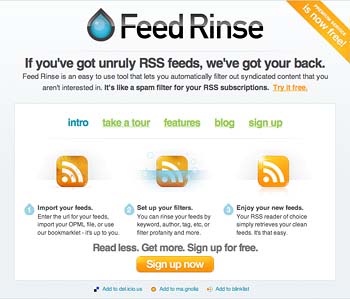
Figure 1
To get started, you first need to create an account. Click the green "Sign Up" link or the orange "Sign up now" button at the bottom of the home page (figure 1).
You will then be prompted to set up a username and password and enter your email address. Submit those details and click the orange button "Let's get started".
You will now be presented with a page where you can enter your feeds. You have the choice of entering them in a list, one feed per line, or of importing an OPML file (figure 2). (If you use a desktop RSS reader, you can usually export all the feeds you have susbcribed to an OPML file.)
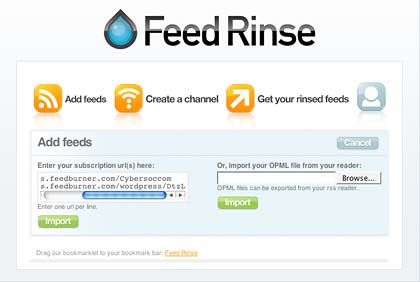
Figure 2
Once you have entered or uploaded your feed information, click submit. You can now set up filtering rules for each of your feeds. Click the "Set up rules" button next to your first feed and enter the criteria by which you want to filter your feed. In our example, we are going to allow posts that appear under several categories, so we select "allow the post" "if any" "tag" "contains" and then enter the categories (tags) of posts we want to appear in our feed (figure 3). You only need to apply rules specific to each of your feeds; you can apply some generic rules later (see below).
TIP: To find out what categories/tags a blog or news publisher is using, you can view the source code of their RSS feed in your browser or check their sites for a category list.
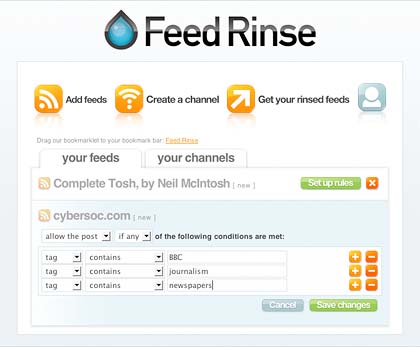
Figure 3
You can also use rules to filter by keyword. To add new rules, click the orange plus sign to add new rules, the orange minus sign to remove them. Once you have set up your rules, click the "Save changes" button.
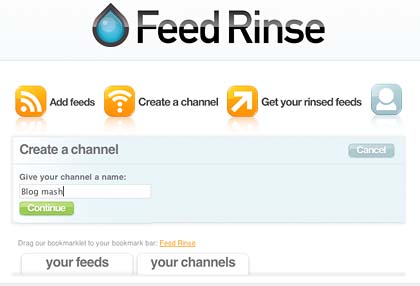
Figure 4
The next step is to create a 'channel' (this is the aggregation part). Click on the "your channels" tab; name your channel (figure 4) and add the feeds you want to include (figure 5). (Click the orange plus button to add more feed options; select the feed to be included from the dropdown menu.) Save changes.
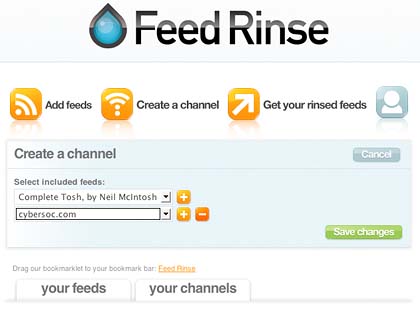
Figure 5

Figure 6
If you now click on the "your channels" tab and then the "Modify channels button" (figure 6), you will see you now have the option of adding a filter to your channel (figure 7). In this case we have added a rule to filter out all posts with headlines that begin "Links for..."
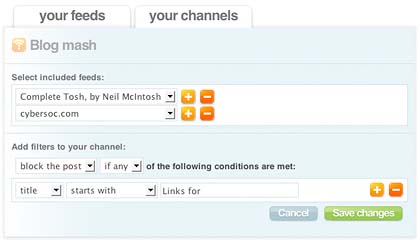
Figure 7
Save changes. You have now created your filtered and aggregated feed. To access it, click the orange RSS feed icon next to your channel name, and select an option from the dropdown menu to add it to your RSS reader. If you just want to access the feed URL select "Other" and it should load in your browser window, allowing you to cut and paste the feed URL from there (figure 8).
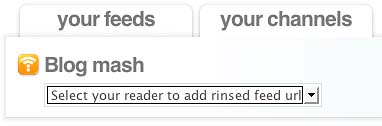
Figure 8
But there are good reasons why filtering and aggregating your feeds might be your main goal, rather than learning to use Pipes. You might, for example, as part of your news or feature research, be monitoring a number of blogs via their RSS feeds. Bloggers often post on a wide range of subjects, placing their posts under particular categories or tags, and you might only be interested in posts that appear in certain categories. The same applies to a lot of news sites. By filtering each feed and combining them, you can end up with a single feed with just the type of posts or stories you need.
Pipes is still in beta and a little unstable. Also, if you want to manage a large number of feeds, your Pipe will soon begin to look like a bowl of spaghetti. Fortunately, on the web, there is always more than one way to skin a cat.
Another web-based (and free) solution is Feed Rinse. Feed Rinse has a far simpler interface than Pipes and you can achieve the same goal as our original Pipe exercise in half the time.

Figure 1
To get started, you first need to create an account. Click the green "Sign Up" link or the orange "Sign up now" button at the bottom of the home page (figure 1).
You will then be prompted to set up a username and password and enter your email address. Submit those details and click the orange button "Let's get started".
You will now be presented with a page where you can enter your feeds. You have the choice of entering them in a list, one feed per line, or of importing an OPML file (figure 2). (If you use a desktop RSS reader, you can usually export all the feeds you have susbcribed to an OPML file.)

Figure 2
Once you have entered or uploaded your feed information, click submit. You can now set up filtering rules for each of your feeds. Click the "Set up rules" button next to your first feed and enter the criteria by which you want to filter your feed. In our example, we are going to allow posts that appear under several categories, so we select "allow the post" "if any" "tag" "contains" and then enter the categories (tags) of posts we want to appear in our feed (figure 3). You only need to apply rules specific to each of your feeds; you can apply some generic rules later (see below).
TIP: To find out what categories/tags a blog or news publisher is using, you can view the source code of their RSS feed in your browser or check their sites for a category list.

Figure 3
You can also use rules to filter by keyword. To add new rules, click the orange plus sign to add new rules, the orange minus sign to remove them. Once you have set up your rules, click the "Save changes" button.

Figure 4
The next step is to create a 'channel' (this is the aggregation part). Click on the "your channels" tab; name your channel (figure 4) and add the feeds you want to include (figure 5). (Click the orange plus button to add more feed options; select the feed to be included from the dropdown menu.) Save changes.

Figure 5

Figure 6
If you now click on the "your channels" tab and then the "Modify channels button" (figure 6), you will see you now have the option of adding a filter to your channel (figure 7). In this case we have added a rule to filter out all posts with headlines that begin "Links for..."

Figure 7
Save changes. You have now created your filtered and aggregated feed. To access it, click the orange RSS feed icon next to your channel name, and select an option from the dropdown menu to add it to your RSS reader. If you just want to access the feed URL select "Other" and it should load in your browser window, allowing you to cut and paste the feed URL from there (figure 8).

Figure 8
Tags (click tag to find related articles; click icon for feed):
how-tos
|
Sign up here for our free, daily email newsletter to get all the latest stories, jobs, tips and more.
Got a story? Call our news team on +44 (0)1273 384290 or email them.
Other recent news
News feed- NUJ to negotiate with Scotsman over blog post sacking
- Mainstream media's power shifting to new media, says FT's Lionel Barber
- Political parties cannot control the new media, says leading UK political blogger
- News International can buck downward trend with heavy print investment, says trading director
- Targeted advertising needs 'intelligent discussion' not scaremongering, says GMG digital director
- >> more news
Most commented on
- Greenslade leaves NUJ because of new media debate
- Birmingham Post goes 'web-first' with site relaunch
- Media Bloggers Association creates blogger insurance scheme
- Journalism.co.uk exposes the ease of accessing private information on social networks
- Live: first ever online broadcast of a UK newspaper's editorial conference
Related news
- How to: handle your tax and legal affairs so they don't come back and bite you
- Review: Advanced online research training masterclass
- How to: create a pre-filtered mash-up of RSS feeds
- How to: find contacts and information about people online
- How to: get travel-writing commissions
Features
Features feed- 'Why I quit the BBC': Angela Saini, freelance science journalist
- 'Paid-for-content will die a death in the mainstream', says idiomag's co-founder
- Reporting from YouTube: 'We want to break down the barriers to entry to traditional journalism'
- 'African journalists have been exploited for decades now', says founder of first all-African online news agency
- From land-grab to consolidation: Shiny Media's Katie Lee on redesigning the blog network
- >> more features
JOB OF THE WEEK
Desk editor
For Britain's biggest-selling modern railways magazine ...more
Freelancers for hire
...see allDISPLAY ADVERTISING
Target our journalism community of 15,600 subscribers and 75k+ visitors monthly. Call Ellie on 01273 384291


Comments
No comments
You must be registered in order to post a comment. Click here to register or login below if you are already registered:
Forgotten your password? Please click here